QR Code Generator
Create a QR code instantly from text, website links, email, phone, contact details, or Wi-Fi information.
Your QR Code
Enter information above and click Generate QR Code.
How this QR Code Generator works
Choose the type of information you want to encode, enter your details, select a size, and generate your QR code. You can then download it as a PNG image.
Table of Contents
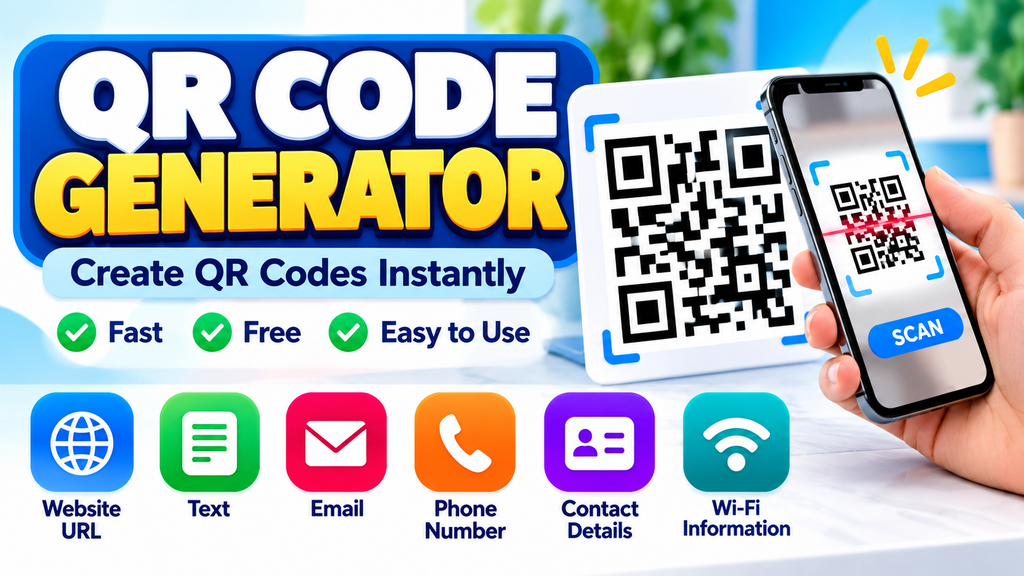
QR Code Generator – Create Free QR Codes Online
Our free QR Code Generator helps you create QR codes for websites, text, email addresses, phone numbers, contact details, and Wi-Fi information. Whether you are preparing marketing materials, sharing a website, or creating a digital contact card, this simple online tool makes the process easier.
QR codes are widely used because they allow people to access information by scanning a square barcode with a smartphone camera.
Instead of typing a long website address or manually entering contact details, users can scan a code and access the encoded information.
What Is a QR Code Generator?
A QR Code Generator is an online tool that converts information into a two-dimensional barcode known as a Quick Response code.
QR codes contain patterns of black and white squares arranged in a grid. A compatible scanner reads these patterns and interprets the encoded information.
QR codes can store several types of content, including website links, plain text, email addresses, telephone numbers, and structured contact information.
Unlike traditional one-dimensional barcodes, QR codes store information in both horizontal and vertical directions.
How to Use the QR Code Generator
Follow these three simple steps.
Step 1: Choose Your Content Type
Select the type of information you want to encode.
Available options include:
- Website URL
- Plain text
- Email information
- Phone number
- Contact details
- Wi-Fi connection information
Choose the option that matches your purpose.
Step 2: Enter Your Information
Type or paste the required details into the input fields.
For example, when creating a website QR code, enter the complete URL, including https://.
If you are creating a code for a telephone number, enter the correct number and country code when necessary.
For Wi-Fi information, carefully check the network name, password, and security settings.
Step 3: Generate Your QR Code
Choose your preferred QR code size and margin settings.
Generate the code using the tool and review the result.
Before sharing or printing it, scan the code with a smartphone to confirm that it contains the correct information.
Different Types of QR Codes
QR codes can serve many everyday purposes.
Website QR Codes
A website QR code contains a web address.
When scanned, a compatible device can open the associated website.
These codes are useful for business cards, product packaging, posters, and printed advertisements.
Text QR Codes
Text QR codes contain written information.
You can use them to share short instructions, messages, identification details, or other text.
The scanning application displays the encoded text.
Email QR Codes
An email QR code can contain an email address and, depending on its format, additional message details.
A compatible scanner may offer to open an email application with the relevant information.
Phone Number QR Codes
A phone QR code stores a telephone number.
After scanning, the device may offer an option to call that number.
This can be useful for customer service, business contacts, and printed directories.
Contact Information QR Codes
Contact QR codes can contain details such as a person’s name, telephone number, and email address.
Compatible devices may offer to save this information as a contact.
Wi-Fi QR Codes
Wi-Fi QR codes can store network connection details.
On supported devices, scanning the code may simplify joining a wireless network.
Only share Wi-Fi codes with people who are authorized to access the network.
Why Are QR Codes Useful?
QR codes provide a convenient method of sharing digital information.
Quick Access to Websites
Visitors can scan a printed code instead of typing a long URL.
Convenient Information Sharing
Contact details, text, and other information can be transferred without manual entry.
Marketing and Advertising
Businesses can place codes on posters, brochures, menus, and packaging to connect printed materials with digital resources.
Events and Education
QR codes can help distribute event information, learning resources, and links to online materials.
Easy Mobile Access
Many modern smartphones support QR scanning through their built-in camera applications.
QR Code Size and Margin Settings
Choosing the correct size is important for reliable scanning.
A QR code needs enough resolution and physical space for a camera to recognize its pattern.
Small codes may become difficult to scan, especially when printed at low quality.
The margin around a QR code is often called the quiet zone.
This blank area helps scanners distinguish the code from surrounding graphics.
Avoid cropping the quiet zone or placing decorative elements too close to the code.
A larger code may be appropriate for posters or materials viewed from a distance.
Always test the final printed size before distributing your design.
Static QR Codes vs. Dynamic QR Codes
A static QR code directly contains the information you enter.
For example, a static website QR code contains a particular URL.
If that URL changes, you generally need to generate a new code.
A dynamic QR code usually points to a redirect service that can change its destination later.
Dynamic codes often require an external service and may include tracking features.
Our tool creates codes from the information you provide; do not assume that a code can be edited after generation.
Best Practices for Creating QR Codes
Follow these tips to make your codes easier to use.
Check the Information
Review website addresses, telephone numbers, and other details before generating a code.
Maintain Good Contrast
Dark patterns on a light background are generally easier to scan.
Preserve the Quiet Zone
Leave sufficient blank space around the code.
Avoid Distortion
Do not stretch or compress the image when placing it into a design.
Test Before Publishing
Scan your code using more than one device when possible.
Consider Accessibility
Provide a readable website address or alternative instructions for people who cannot scan the code.
Protect Sensitive Information
Do not encode passwords, private credentials, or confidential information into codes intended for public distribution.
Are QR Codes Safe?
QR codes are simply a method of encoding information. They are not automatically safe or unsafe.
A QR code may contain a legitimate website address, but it can also point to a malicious website.
Before opening an unfamiliar link, check the destination displayed by your scanning application.
Avoid entering passwords or payment information on suspicious websites reached through QR codes.
Businesses should also inspect public QR code stickers or printed materials for signs of tampering.
Frequently Asked Questions
How do I create a QR code for free?
Select the content type, enter the information, choose the size, and generate the QR code using our free online tool.
Can I create a QR code for my website?
Yes. Select the website URL option and enter the full address.
Can QR codes contain text?
Yes. QR codes can encode plain text as well as other supported information formats.
Do QR codes expire?
The encoded information in a static QR code does not have a built-in expiration date. However, linked websites or services may become unavailable.
Can I create a QR code for Wi-Fi?
Yes. The tool supports Wi-Fi information. Compatible devices may use the code to help connect to the network.
Why is my QR code not scanning?
Common reasons include low image quality, insufficient contrast, an inadequate quiet zone, physical damage, or incorrect encoding.
Can I print a QR code?
Yes. Choose a suitable size, maintain clear contrast, and test the printed code before sharing it.
Need to create strong passwords for your online accounts or Wi-Fi network? Try our free Password Generator to generate random passwords with customizable lengths, numbers, letters, and symbols.
Want to learn more about how QR codes work, their history, and their different applications? Visit the official DENSO WAVE QR Code website for educational information about QR code technology.
Final Thoughts
QR codes offer a practical way to connect physical materials with digital information.
Whether you are sharing a website, contact details, or a short message, our QR Code Generator helps you create QR codes quickly using simple settings.
Always verify the encoded information and test your finished code before publishing or distributing it.