JSON Formatter & Validator
Format, beautify, minify, and validate JSON data instantly with clear error detection.
How to Use the JSON Formatter & Validator
Paste JSON into the input box and choose Format, Minify, or Validate. The tool will check the JSON syntax and show a clear message if an error is found.
Table of Contents
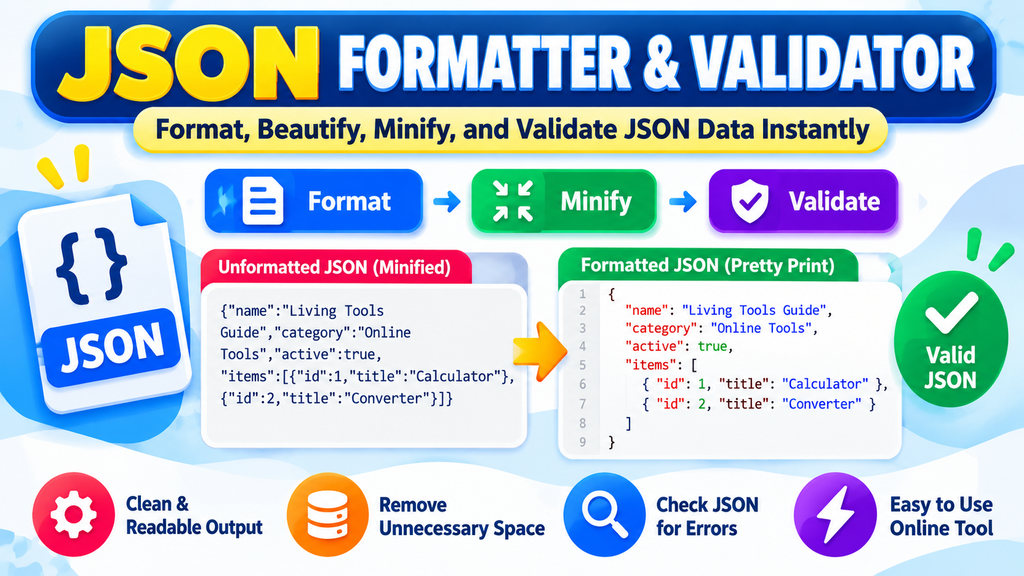
JSON Formatter & Validator – Format, Minify, and Validate JSON Online
Our free JSON Formatter & Validator helps you organize, check, and simplify JSON data in seconds. Whether you are a developer, student, website owner, or beginner learning data formats, this online utility makes working with JSON easier.
JSON is commonly used in websites, applications, APIs, and data exchange systems. However, long or incorrectly structured JSON documents can be difficult to read and troubleshoot.
With our JSON Formatter & Validator, you can format JSON for readability, minify it to remove unnecessary whitespace, and validate its syntax to identify errors.
What Is JSON?
JSON stands for JavaScript Object Notation. It is a lightweight, text-based format used to represent structured data.
JSON commonly stores information as objects containing key-value pairs and arrays containing ordered values.
For example, a simple JSON object looks like this:
{
  "name": "Living Tools Guide",
  "category": "Online Tools",
  "active": true
}
This example contains three properties: a name, a category, and an active status.
JSON is popular because it is relatively easy for people to read and for software applications to process.
What Is a JSON Formatter?
A JSON formatter takes valid JSON data and displays it in a more readable layout.
Formatted JSON generally includes indentation, line breaks, and consistent spacing.
For example, compact JSON may look like this:
{"name":"Alex","age":25,"active":true}After formatting, the same data becomes:
{
  "name": "Alex",
  "age": 25,
  "active": true
}
Both examples represent the same information.
Formatting does not change the meaning of the data. It simply makes the structure easier to understand.
How to Use the JSON Formatter & Validator
Follow these simple steps to work with your JSON data.
Step 1: Open the tool and locate the Input JSON field.
Step 2: Paste your JSON data or type it into the input area.
Step 3: Choose the action you want to perform.
Step 4: Click Format to organize the data with indentation and line breaks.
Step 5: Click Minify to produce a compact version with unnecessary whitespace removed.
Step 6: Click Validate to check whether the JSON follows the required syntax rules.
Review the result or any displayed error information before using the data in your project.
Three Main Features of This Tool
1. Format JSON
Formatting makes complex data structures easier to inspect.
Indented objects and arrays help developers identify nested information and understand how different values relate to one another.
This is especially useful when reviewing API responses or configuration files.
2. Minify JSON
Minification removes whitespace that is not required to preserve the JSON data structure.
For example:
Formatted JSON:
{
  "product": "Notebook",
  "price": 15
}
Minified JSON:
{"product":"Notebook","price":15}Minified JSON generally requires fewer characters and can be convenient when transferring or storing structured data.
3. Validate JSON
Validation checks whether the entered text follows JSON syntax rules.
A valid JSON document must use the correct structure, punctuation, quotation marks, and supported value types.
For example, the following is invalid JSON:
{
  "name": "Alex",
  "age": 25,
}
The comma after the final property is not allowed in standard JSON.
A validator can identify invalid input so you can correct it before using the data.
Common JSON Syntax Errors
Missing Double Quotation Marks
JSON requires double quotation marks around object property names.
Incorrect:
{name: "Alex"}Correct:
{"name": "Alex"}Trailing Commas
Standard JSON does not allow trailing commas after the final item in an object or array.
Incorrect:
{"a": 1,}Correct:
{"a": 1}Incorrect Boolean Values
JSON boolean values must be written in lowercase.
Incorrect:
{"active": True}Correct:
{"active": true}Missing Brackets or Braces
Objects must have matching curly braces, and arrays must have matching square brackets.
Missing closing characters can make an entire JSON document invalid.
JSON Data Types Explained
JSON supports several basic data types.
| Data Type | Example |
|---|---|
| String | "Hello" |
| Number | 42 |
| Boolean | true |
| Null | null |
| Object | {"city":"Kandy"} |
| Array | ["red","blue"] |
Understanding these types helps you create correctly structured JSON documents.
Why Is JSON Validation Important?
Invalid JSON can prevent applications from reading data correctly.
When an API receives incorrectly structured information, it may reject the request or return an error.
Configuration files containing syntax mistakes may also cause software features to malfunction.
Checking your JSON before submitting or deploying it helps reduce avoidable errors.
A JSON Formatter & Validator is therefore useful for debugging, testing, and reviewing structured information.
Where Is JSON Commonly Used?
Web Development
Web applications use JSON to exchange information between browsers and servers.
APIs
Many web APIs send and receive JSON-formatted requests and responses.
Application Settings
Some applications store configuration information in JSON files.
Data Storage
JSON is used to represent structured records and exchange data between systems.
Learning Programming
Students often encounter JSON while studying JavaScript, Python, APIs, and modern web development.
Tips for Working With JSON
Always use double quotation marks for object property names and string values.
Check that every opening brace or bracket has a matching closing character.
Avoid trailing commas and unsupported values such as undefined.
Format complex data before reviewing it, especially when objects contain multiple nested levels.
Validate the document after making changes.
When working with sensitive information, avoid pasting passwords, API keys, or confidential records into online tools unless you have verified how the tool handles that data.
Frequently Asked Questions
Is JSON the same as JavaScript?
No. JSON is a data interchange format. Although its syntax is related to JavaScript object notation, JSON has stricter rules.
Can I format JSON without changing its values?
Yes. Formatting valid JSON changes its presentation rather than its underlying data values.
What is the difference between formatting and minifying?
Formatting adds readable indentation and spacing. Minifying removes unnecessary whitespace to create a more compact representation.
Why is my JSON invalid?
Common reasons include missing quotation marks, trailing commas, incorrect brackets, or unsupported syntax.
Can JSON contain arrays?
Yes. Arrays are supported and can contain strings, numbers, objects, other arrays, and additional valid JSON values.
Can I use this tool for API responses?
Yes. You can paste JSON responses into the tool to inspect their structure and check their syntax.
Need to change text formatting as well? Try our Text Case Converter to convert text into uppercase, lowercase, title case, and sentence case instantly.
Want to learn more about JSON formatting and data structures? Visit the official MDN Web Docs JSON Guide for helpful examples and explanations.
Final Thoughts
Working with structured data becomes easier when your information is properly formatted and validated.
Whether you are debugging an API response, checking a configuration file, or learning JSON syntax, having a convenient online utility can save time.
Use our free JSON Formatter & Validator to format, minify, and validate JSON data quickly and efficiently.